
Passkeys — A Simple Security Update That Significantly Reduces Cyber Risk.
We're seeing a noticeable increase in cyber attacks across New Zealand businesses, particularly phishing emails. These phishing attacks are becoming increasingly convincing and remain one of the most effective ways attackers gain access to accounts.
To address this, Microsoft is strongly encouraging the implementation of Passkeys.
Passkeys provide a more secure, phishing‑resistant way to sign in by tying authentication to a user’s physical device. Nothing is typed, and credentials can’t be stolen, reused, or intercepted by attackers.
It's an extra layer of protection, and really simple to set up!
The 4 Strengths of Account Protection
1.
PASSWORD ONLY (Bad)
A password by itself is not strong enough. Passwords can be guessed, reused, leaked, or stolen through phishing and social engineering. So having your dogs name as your go to password might not be strong enough!
2.
SMS CODES (OK)
SMS adds another layer, but it isn’t foolproof. Messages can be intercepted, phone numbers can be hijacked (SIM swapping), and attackers can impersonate users during login.
From Febuary 2027, Microsoft is retiring SMS and moving users to Passkeys.
3.
AUTHENTICATOR APP (Good)
SMS adds another layer, but it isn’t foolproof. Messages can be intercepted, phone numbers can be hijacked (SIM swapping), and attackers can impersonate users during login.
4.
PASSKEYS (Best!)
Even if a hacker gets your password and MFA code, they can’t continue without your device. No device = no access.
When signing in with a passkey, you simply approve the login using your device, making the process both more secure and easier to use!

How to set up Passkeys
Each staff member will need to enable passkeys on their own account.
Before you get started, please note:
- Passkey's need to be enabled in the Microsoft 365 tenant.
- You'll need the Microsoft Authenticator app to set it up your Passkey.
- Passkeys in the Authenticator app are not supported on some older devices, which are generally anything lower than Android 15 and iOS 17.
Note: The screenshots in this example are from an iPhone, but the process is very similar on Android devices.
Step 1
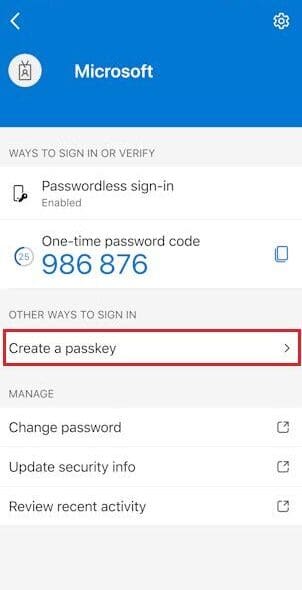
Open your Microsoft Authenticator app. If you already added an account in the app, tap your account, and then tap Create a passkey
Step 2
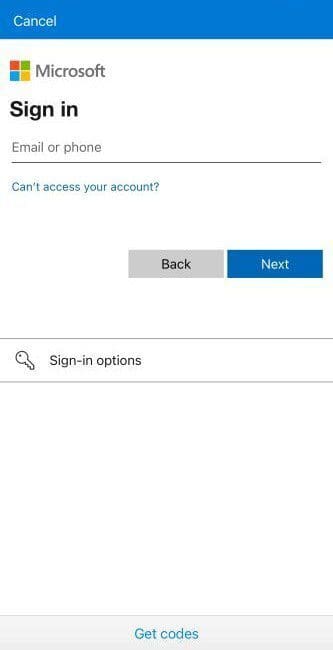
Sign-In with your Microsoft 365 account. You will be prompted for MFA - use your existing MFA method to confirm your sign-in.
Step 3
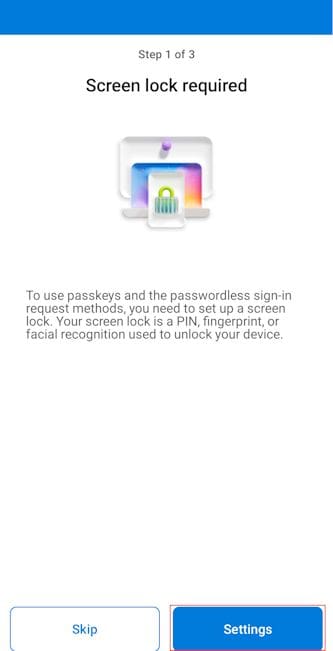
Enable Screen Lock.
If necessary, tap Settings and set up a screen lock.
Step 4
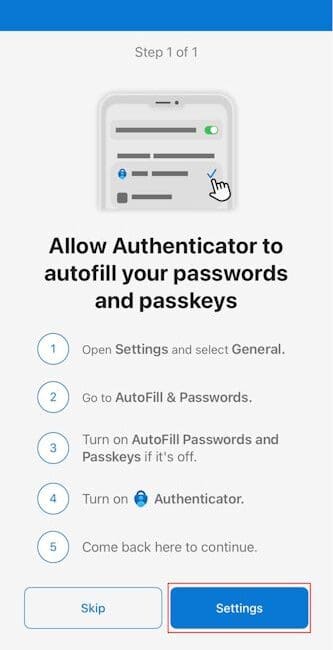
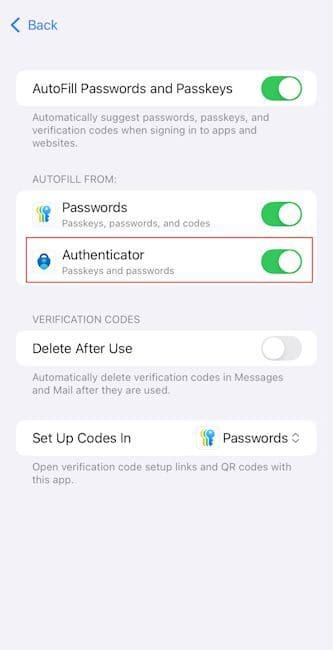
Allow Autofill. When prompted, tap Settings to allow Microsoft Authenticator as a passkey provider.
On iPhone:
Go to Settings > General > Autofill & Passwords. Make sure AutoFill Passwords and Passkeys is turned on. Under Autofill From, ensure Microsoft Authenticator is selected.
On Android (or other devices):
Open Settings > Passwords & accounts and make sure Microsoft Authenticator is selected.
Step 5
You're Done!
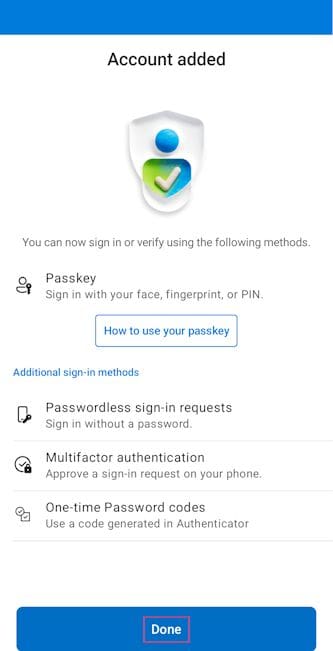
Return to Authenticator, tap Done to confirm that you added Authenticator as a passkey provider. Then you can see Passkey added as a sign-in method for your account. Tap Done again to finish.
Step 5
You're Done!
Return to Authenticator, tap Done to confirm that you added Authenticator as a passkey provider. Then you can see Passkey added as a sign-in method for your account. Tap Done again to finish.
How to use a passkey
Once set up, you simply approve sign-ins on your device. No passwords or MFA codes required.
Note: Bluetooth is used for a proximity check between your phone and computer, to verify the sign-in is done by you - not by someone else, somewhere else.
Scenario 1.
Getting into your work account on a computer.
1. At the log-in screen, enter your work email address.
2. A QR code will appear (if not, select "Other ways to sign in")
3. Use the native-camera app on your smartphone with the Passkey, and scan the QR code.
4. And you're in! No passwords, no MFA codes. Phishing-resistant sign-in at its best.
Scenario 2.
Getting into your work account on your phone.
1. Open the app you need your work account on (i.e Outlook, Teams)
2. Enter your work email address.
3. Your phone will offer to sign-in using the passkey already stored on your phone - no QR code to scan.
4. Confirm with your Face ID, fingerprint, or device PIN, and you're in!
Passkeys
Frequently Asked Questions
Passkeys are new for a lot of people, so we've answered some of the questions we're hearing most often. Don't see your question below? Feel free to get in touch with our team.
What is a passkey?
Think of a passkey like a digital house key. Instead of typing a password and then entering a code, you simply use your trusted device (such as your phone) to unlock your account. It's quicker, easier, and much harder for criminals to copy or steal.
Is a passkey installed on my device?
Not exactly. A passkey is securely stored on your trusted device, such as your phone, and used to confirm it's really you signing in. There's nothing you need to manually install or manage once it's set up.
What if I lose my phone with my passkey on it?
Like a house key, you can have more than one key for the same house, such as one on your phone and another on your computer. If you lose your phone, you can use another registered device to sign in and then set up a new passkey on your replacement phone. If your passkey was only set up on the lost phone, don't worry, just get in touch and we'll help you regain access and get everything set up again.
Can I have a passkey on more than one device?
Yes, we highly recommend it. Setting up a passkey on both your phone and computer means you can still sign in if one device is lost, replaced, unavailable, or simply not with you. Having a backup passkey makes life easier and helps prevent you from getting locked out of your account.
If you'd like to set up a passkey on another device, get in touch and we'll be happy to help.
Is a passkey more secure than a password?
Yes, 100%. Passkeys are designed to protect against phishing attacks, fake login pages, and stolen passwords. They're considered one of the most secure ways to sign in today.
Do I still need a password?
Yes, but you'll rarely need to use it. Once your passkey is set up, signing in is usually as simple as approving the sign-in on your device.
Cyber attacks are increasing, but protecting your account doesn’t have to be complicated.
If you need help setting this up or have questions, get in touch. We’re happy to help.